
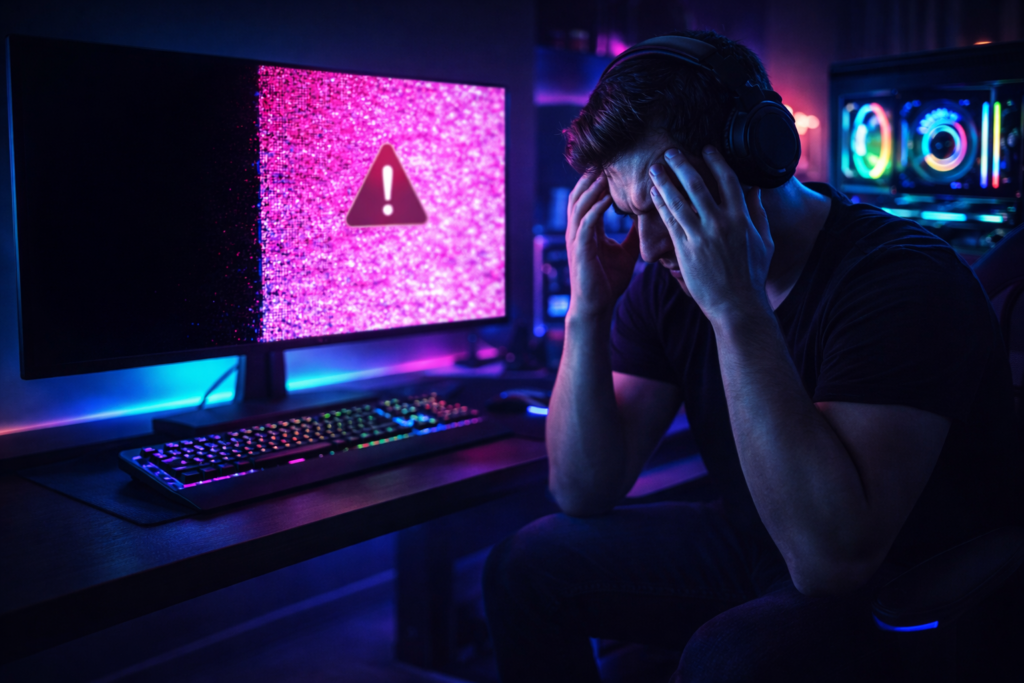
You are deep into a gaming session, fan speeds are humming, and you’re about to hit a checkpoint. Suddenly—darkness. Or worse, a blinding hot pink filter washes over everything.
If you’re reading this, you’re likely staring at a monitor that isn’t doing what it’s supposed to. I agree, it is panic-inducing. You immediately wonder, “Did my GPU just die? it’s not always a hardware funeral. In most cases, these “Screen of Death” errors are caused by software conflicts, driver hiccups, or simple cable faults that can be fixed in minutes.
In this guide, I will preview the exact step-by-step methods to diagnose and fix both the black screen problem in games and the dreaded pink screen problem solution. We will move from easy software toggles to advanced hardware checks.
The “Black Screen” Crash in Games
A black screen error while gaming usually means the video signal has been cut, but the PC is often still running (you might still hear audio). Here is how to tackle it.
1. The 10-Second Driver Reset (Try This First!)
Before you force restart your PC, try to wake up the graphics driver. Windows has a built-in hotkey for this specific scenario.
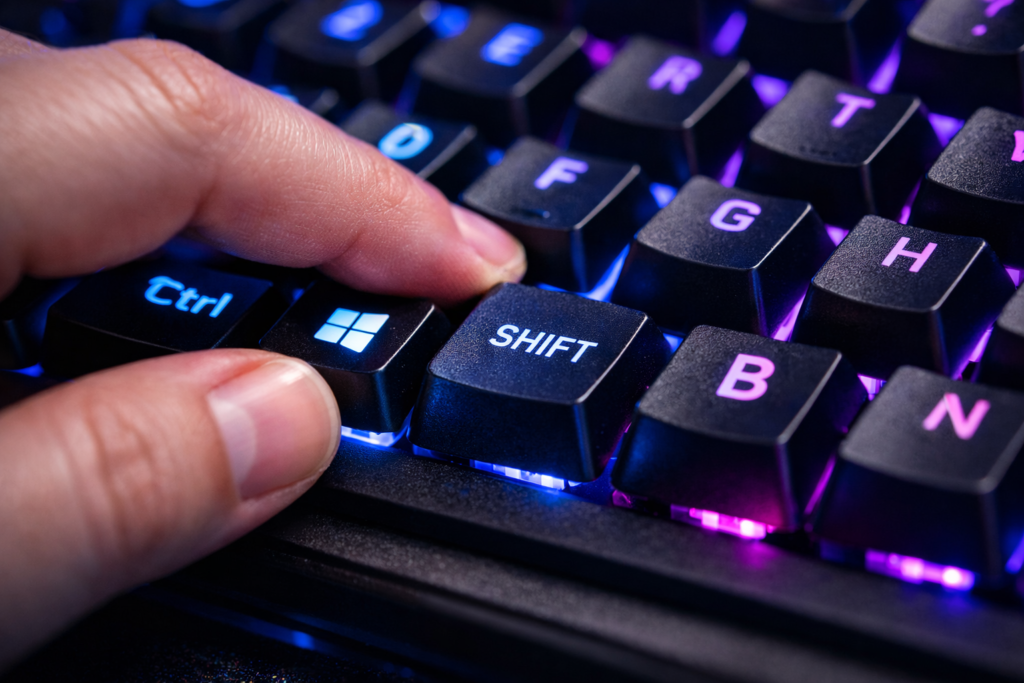
- Press
Windows Key + Ctrl + Shift + Bsimultaneously. - What happens: Your screen will flicker, and you will hear a “beep.” This command restarts the video driver subsystem without closing your game.
2. Resolution Mismatch (The “Out of Range” Error)
Sometimes a game launches in a resolution or refresh rate your monitor doesn’t support, resulting in a black screen.
- The Fix: Press
Alt + Enterwhile the black screen is active. - Why it works: This forces the game to switch from Fullscreen to Windowed Mode. Once in windowed mode, you can safely adjust the video settings to match your monitor.
3. The Clean Driver Install (DDU Method)
If your black screen crash in game persists, your GPU drivers are likely corrupt. Simply “updating” them isn’t enough; you need a clean slate.
- Download DDU (Display Driver Uninstaller).
- Boot Windows into Safe Mode.
- Run DDU and select “Clean and Restart.”
- Pro Tip: If you play niche indie titles—like the ones found on maxtheelf.app/download/—always ensure your drivers are stable rather than just “newest,” as beta drivers often break compatibility with Unity or Ren’Py engines.
Why is My Screen Pink While Gaming?
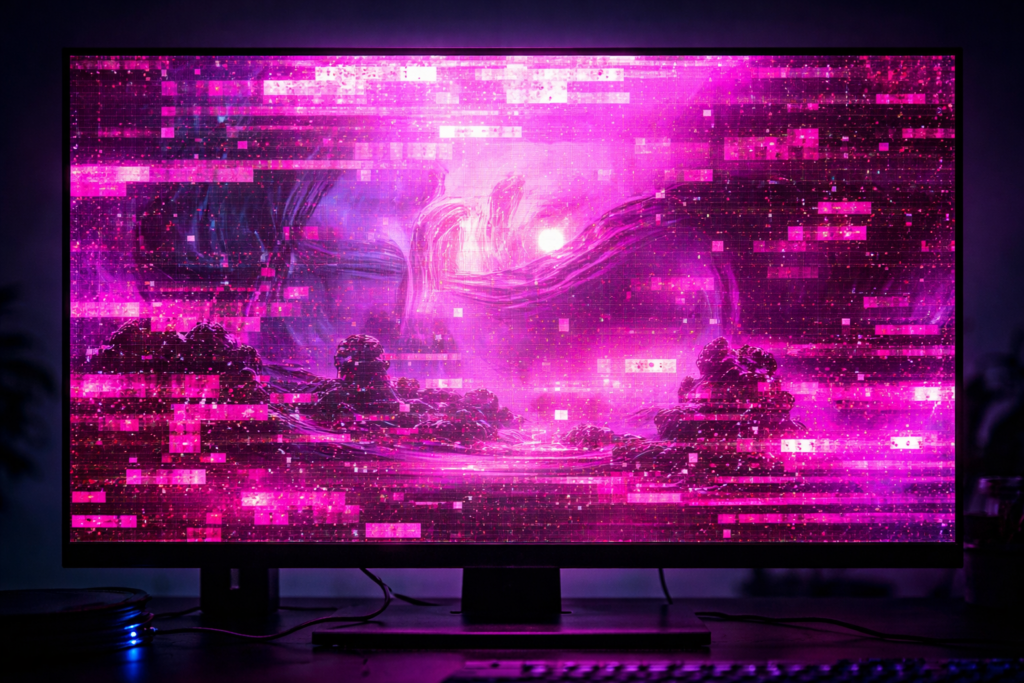
The Pink Screen of Death (PSoD) is distinct from the black screen. It often looks like a transparent pink filter or heavy artifacting.
1. The HDMI “Handshake” & Color Space Bug
This is the most common cause for Nvidia users. The GPU sends a color signal (YCbCr) that the monitor interprets incorrectly.
- Fix:
- Open Nvidia Control Panel > Change Resolution.
- Scroll down to “Output Color Format.”
- Change it from YCbCr to RGB.
- If it is already RGB, try switching it to YCbCr 4:4:4.
2. GPU Overheating & VRAM Artifacts
Pink squares or a full pink tint can indicate your Video RAM (VRAM) is overheating.
- Diagnosis: Download HWMonitor and check your GPU temperatures while gaming.
- Safe Zone: Anything below 80°C is generally safe. If you hit 90°C+, you are in the danger zone.
- Solution: Clean your dust filters and adjust your fan curves using MSI Afterburner.
3. Software Conflicts (The “Night Light” Issue)
Do you use f.lux or Windows “Night Light”? These programs overlay a color filter on your screen. When a game takes exclusive fullscreen control, these filters can bug out, resulting in a pink screen problem solution being as simple as disabling them.
- Test: Disable f.lux/Night Light before launching your game.
Advanced Troubleshooting & Hardware Checks
Check Your Cables (The Silent Killer)
A loose or damaged HDMI/DisplayPort cable causes signal degradation. A “digital” signal doesn’t just fade; it crashes or shows incorrect colors (like pink/green static) when pins lose contact.
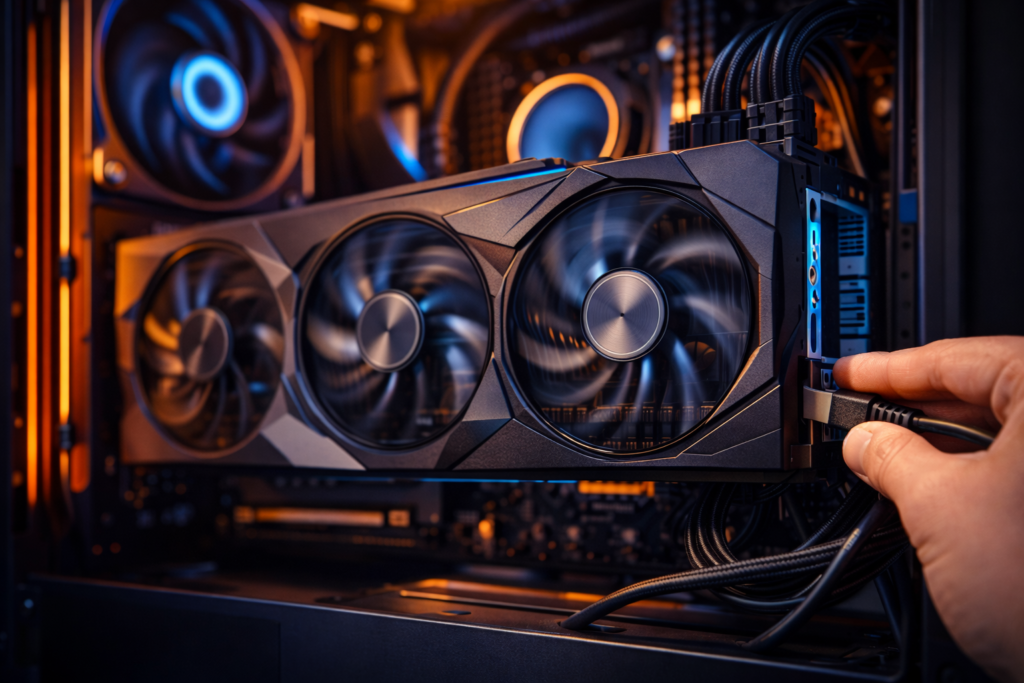
- Action: Swap your cable with a known good one. Ensure it clicks firmly into the GPU port, not the motherboard.
Power Supply (PSU) Stability
If you get a black screen and your PC restarts itself, your Power Supply Unit (PSU) might be tripping its protection circuits because the GPU is drawing too much power.
- Check: Ensure you are using individual PCIe power cables for your GPU, not a single “daisy-chained” cable with a splitter.
Is It a Game-Specific Bug?
Sometimes the issue isn’t your PC, but the game itself.
Conclusion
Fixing a black screen error or pink screen usually comes down to a process of elimination. Start with the “Magic Hotkey,” move to cable checks, and finally perform a clean driver install.